
01 · Input
First frame lock
Upload the exact product shot, portrait, artwork, or AI image you want the video to preserve.
Images
0/4
Prompt
Resolution
Duration
Aspect Ratio
Motion controls
Slow push-in
Light sweep
Stable label
Controlled motion from a locked first frame
Upload a photo, product image, artwork, or AI-generated visual and turn it into a cinematic video with controlled motion, camera movement, and publish-ready formats.
Image to video
Upload a still image, define what should move, and generate a clip that keeps the original visual identity intact.
01 · Input
Upload the exact product shot, portrait, artwork, or AI image you want the video to preserve.
02 · Motion
Describe push-in, orbit, pan, hair movement, fabric motion, particles, or a product reveal.
03 · Output
Generate a short clip, preview the motion, then export for social, ads, education, or client work.
How it works
Use a practical four-step flow: upload, guide motion, generate, and publish.
Start from a product photo, portrait, AI image, artwork, slide, album cover, interior, or brand visual.
Use prompts or presets for zoom, pan, orbit, reveal, ambient movement, character motion, and scene mood.
Create a short video while preserving the original image, then review motion quality before publishing.
Add captions, logos, music, and CTAs, then export versions for TikTok, Reels, Shorts, YouTube, and ads.
Motion control
Image to Video works best when the uploaded frame stays stable and the motion prompt controls exactly what changes.
Treat the uploaded image as the visual contract so the generated video keeps the subject, framing, color, and brand details.
Guide the shot with slow push-in, pull-back, pan, tilt, handheld drift, orbit, rack focus, and cinematic reveal prompts.
Animate hair, fabric, steam, reflections, product shine, subtle expressions, water, particles, or background atmosphere.
Keep important silhouettes, packaging, composition, rooms, UI screens, or character identity stable through the motion pass.
Check model, aspect ratio, duration, quality, and estimated credits before generating the final motion.
Plan 9:16, 16:9, and 1:1 outputs for vertical social, YouTube, campaign ads, websites, and presentations.
Examples
Use these common patterns to animate product photos, portraits, AI art, interiors, and social assets.
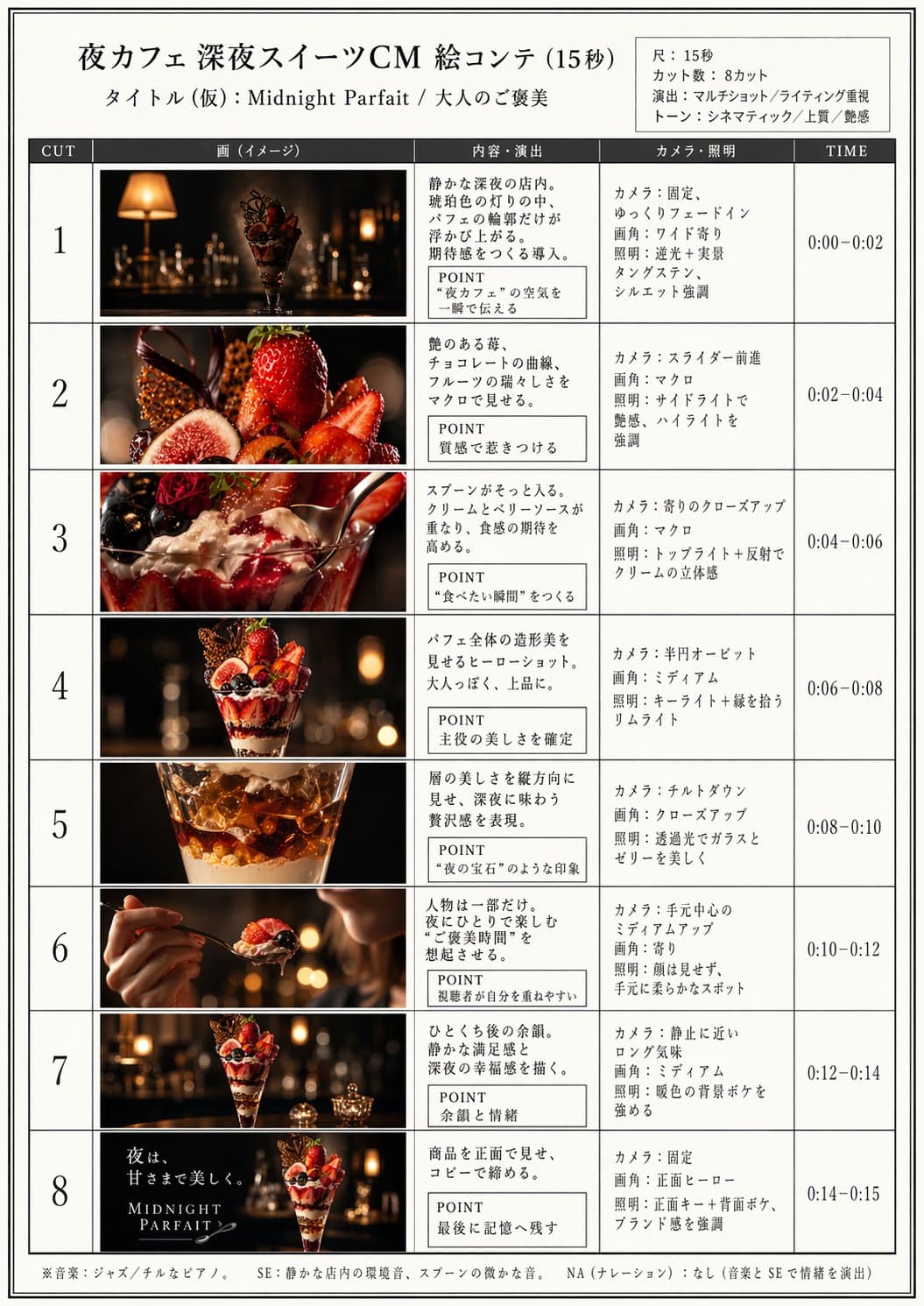 Input
InputAnimate a static product shot with camera push, reflection, light sweep, and a stable label.
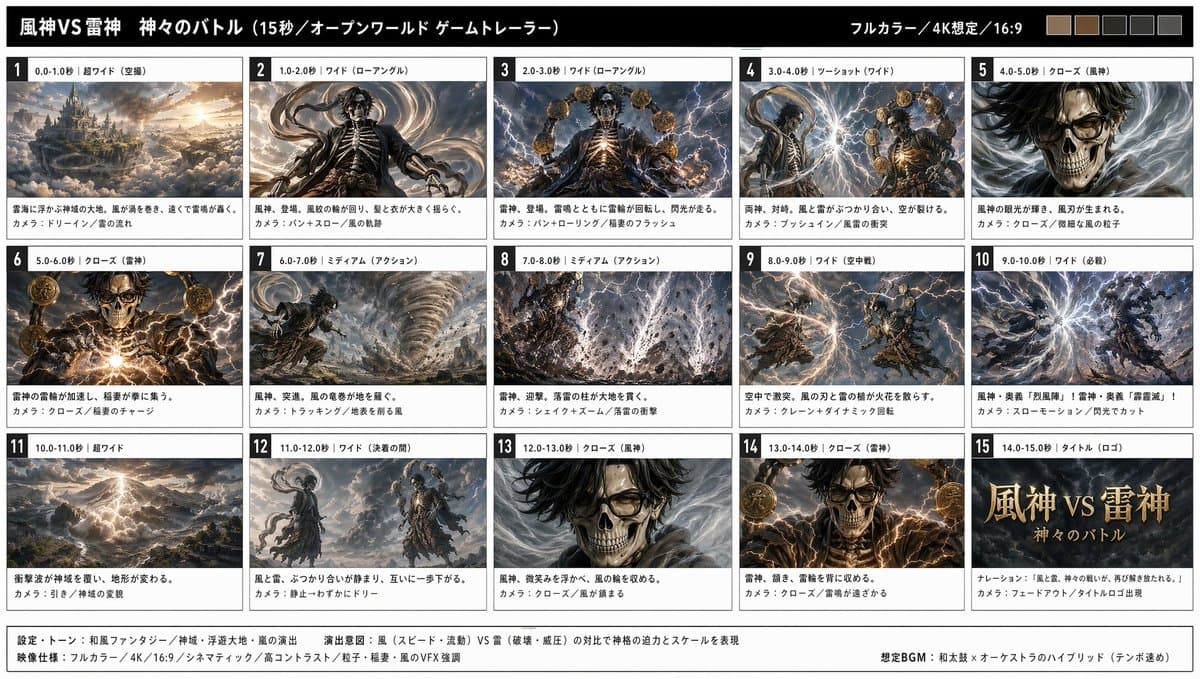 Input
InputAdd subtle character motion, fabric movement, lighting shift, and a smooth camera move.
Use cases
Turn existing visuals into motion assets for creators, marketers, educators, agencies, photographers, and product teams.
Turn static posts, portraits, AI art, and campaign visuals into short motion clips for TikTok, Reels, and Shorts.
Animate product photos with camera moves, reflections, environmental motion, and CTA endings for ad testing.
Bring generated artwork, posters, character concepts, fantasy scenes, and style frames into subtle cinematic motion.
Add natural facial movement, hair motion, clothing movement, and camera depth while keeping identity consistent.
Animate slides, diagrams, explainers, and still visuals with captions, narration space, and simple pacing.
Create moving portfolio pieces, real estate walkthrough moments, wedding clips, and branded showcase videos.
Prompt craft
Write motion prompts like shot direction: what moves, what stays fixed, how the camera behaves, and what distortion to avoid.
Animate this product photo with a slow camera push-in, soft studio reflections, subtle condensation, elegant light sweep, and clean end-frame for a social ad.
Keep the person's face and pose consistent. Add gentle hair movement, soft window light shift, shallow depth of field, and a slow push-in camera move.
Animate the artwork with drifting mist, moving light rays, subtle camera orbit, and atmospheric particles while preserving the original composition.
Use the room photo as the first frame. Add a smooth forward dolly, warm natural light, gentle curtain motion, and stable architecture lines.
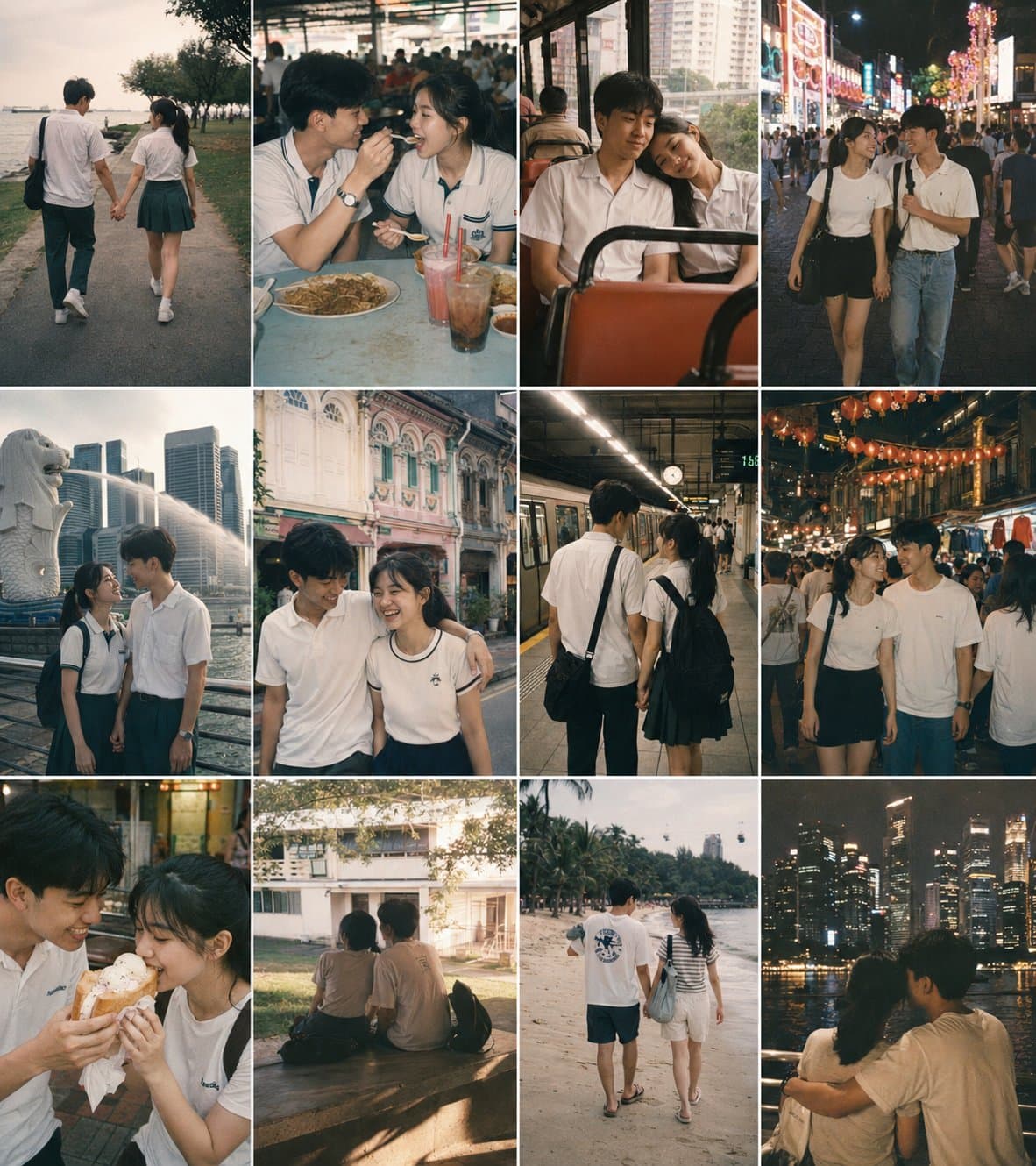
Static image to publish-ready video
Add captions, logos, music, CTA endings, and platform exports after the motion pass.
Workflow
Answers about uploading images, motion control, supported formats, editing, product ads, and commercial use.
An image to video AI generator turns a static image into a short video. You upload an image, describe the motion, then generate a clip that preserves the original visual direction.
Upload your photo, choose an aspect ratio and duration, describe camera or subject motion, then generate and preview the animated result.
Image to video workflows commonly start from JPG, PNG, or WEBP images. Use a clear, high-resolution image for the best motion stability.
Product photos, portraits, clean AI artwork, interiors, posters, slides, and images with clear subjects usually animate better than blurry or cluttered inputs.
Yes. Strong prompts describe camera movement, subject movement, lighting, atmosphere, what should stay fixed, and what should not change.
Yes. Image to video is especially useful for ecommerce, product reveals, seasonal campaign assets, and fast ad creative tests from existing product photos.
Yes. A publish-ready workflow should let you refine motion, add captions, music, logos, CTA frames, and export formats after generation.
Commercial use depends on your plan, the model provider rules, and whether you own or have rights to the uploaded image, brand assets, products, and references.
Upload your first frame, describe the motion, and generate a video that keeps the image's subject, layout, and brand details under control.