
Upload a reference image
Start with a portrait, product photo, sketch, room, poster, or concept image.
or drop / paste (Max 14)
Aspect Ratio
Resolution
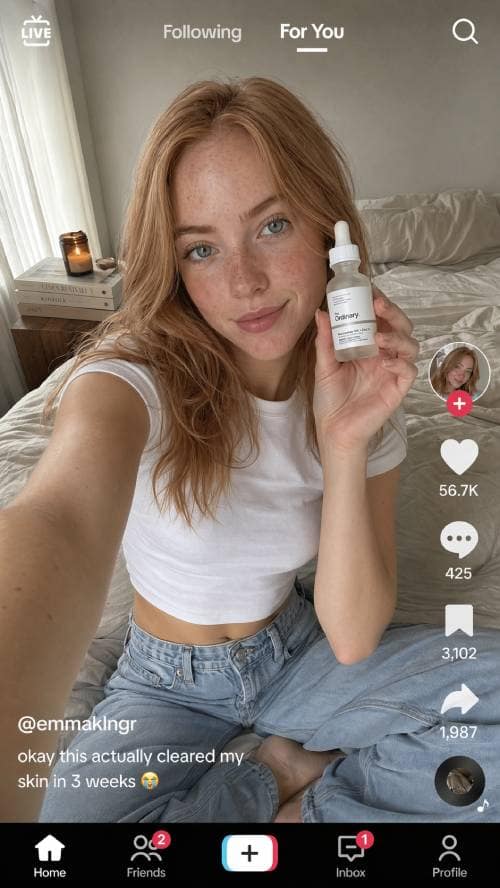
Upload a reference image, describe the change you want, and generate new variations with GPT Image 2, Nano Banana 2, Flux 2, and GPT Image 1.5. Keep what matters, change everything else.
Plain-language editing
Upload a reference, describe the edit, and generate new visual directions without masks, layers, or manual retouching.
Start with a portrait, product photo, sketch, room, poster, or concept image.
Tell the model what to preserve and what to transform using natural language.
Create variations that feel redrawn, not filtered, with stronger style and intent.
Model choice
Different models preserve different details. FlowCanvas lets you compare precision, realism, speed, and style from one uploaded image.
Use it when product shapes, readable text, and structured layouts need to stay clean while the image changes.
Push portraits, characters, and everyday images into more playful, illustrated, or stylized directions.
Keep scenes believable when changing lighting, interiors, materials, backgrounds, or editorial photo style.
Explore several directions quickly before sending the strongest candidate into a higher-quality edit pass.
Use cases
Use an existing image as the anchor, then change style, background, lighting, material, or creative direction while keeping the parts that matter.
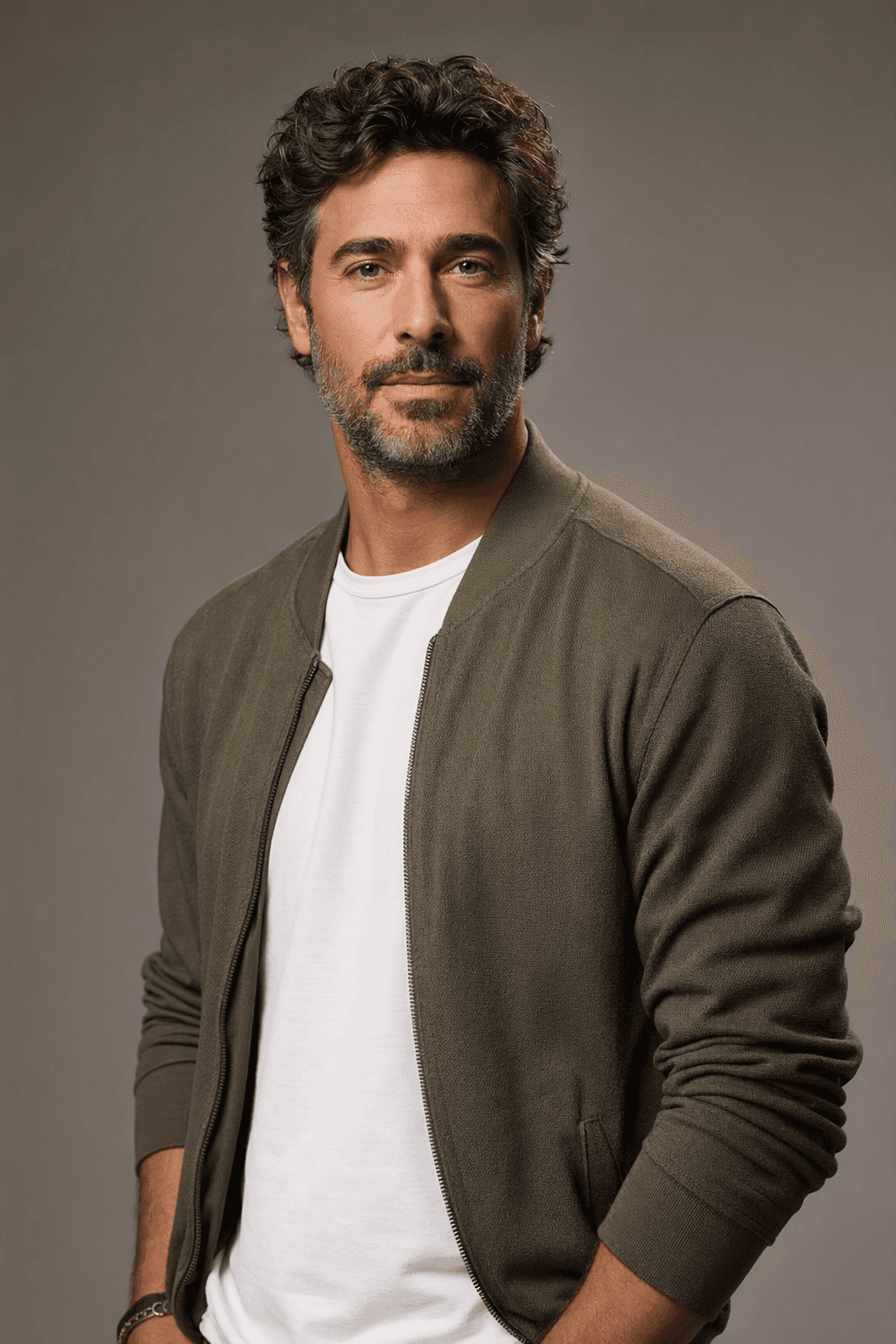
Turn a reference photo into editorial art, anime, illustration, or a polished character concept while keeping identity and pose recognizable.
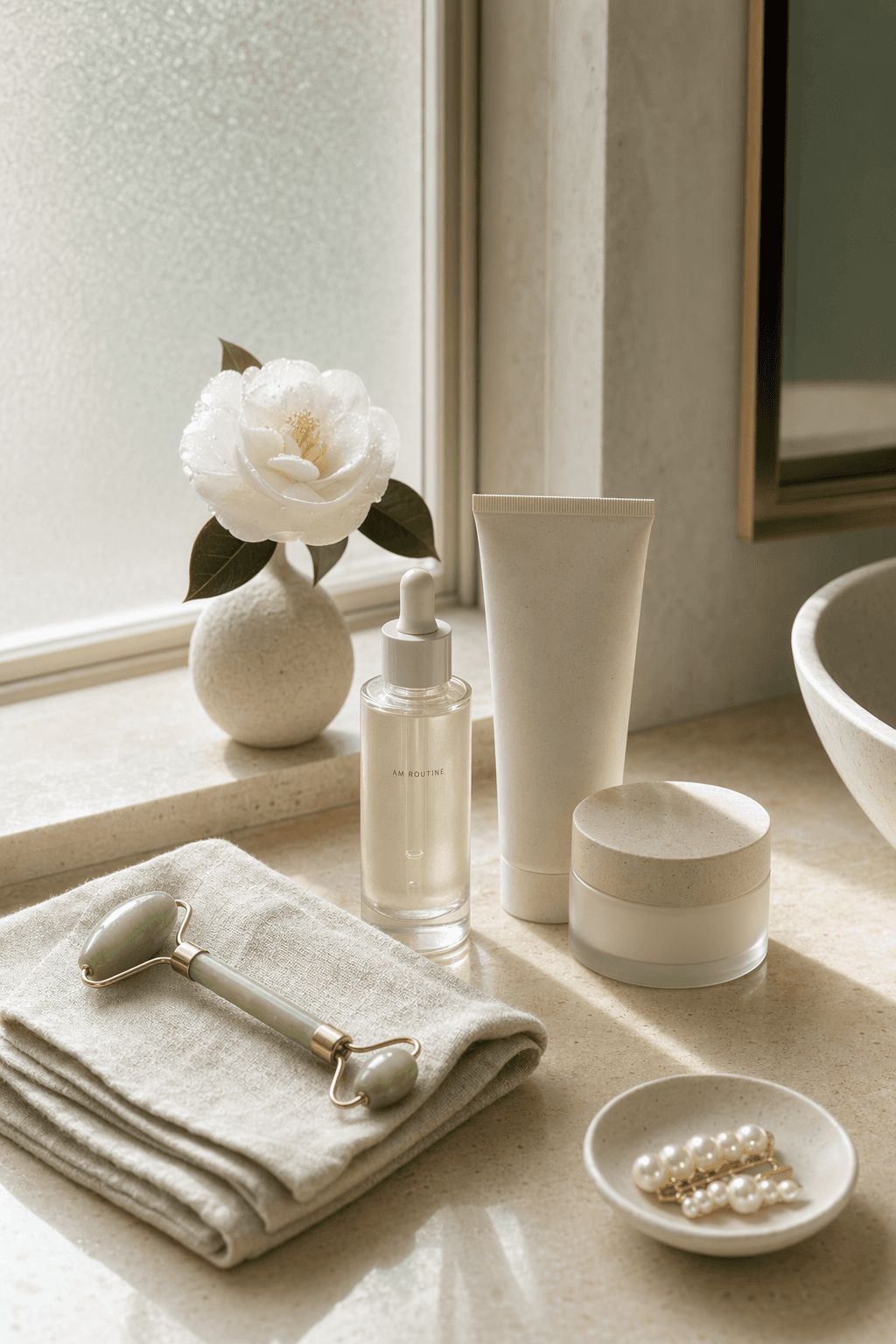
Change backgrounds, materials, lighting, or seasonal presentation without booking a new studio shoot.
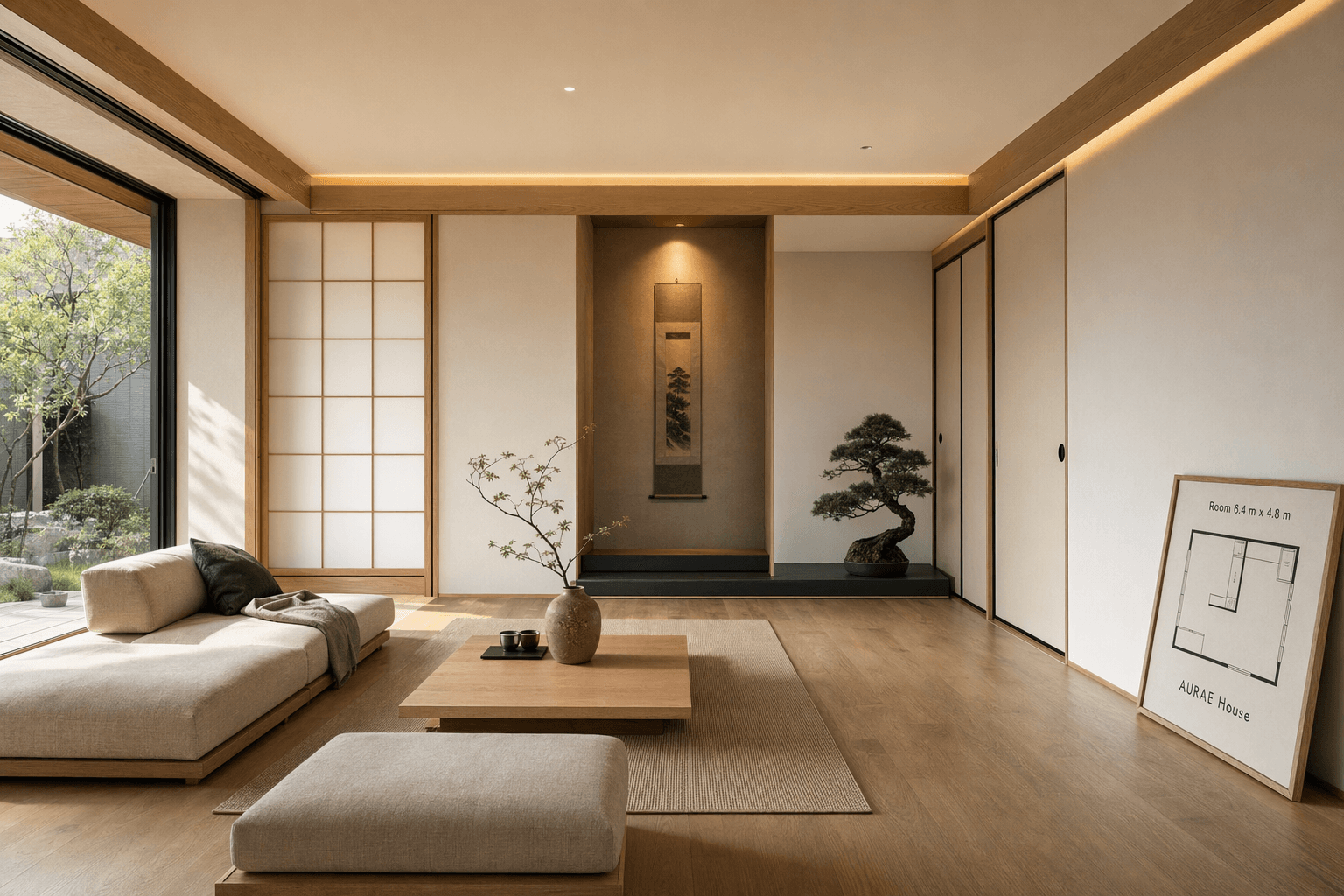
Try new room styles, lighting moods, furniture directions, and architecture concepts from one starting image.
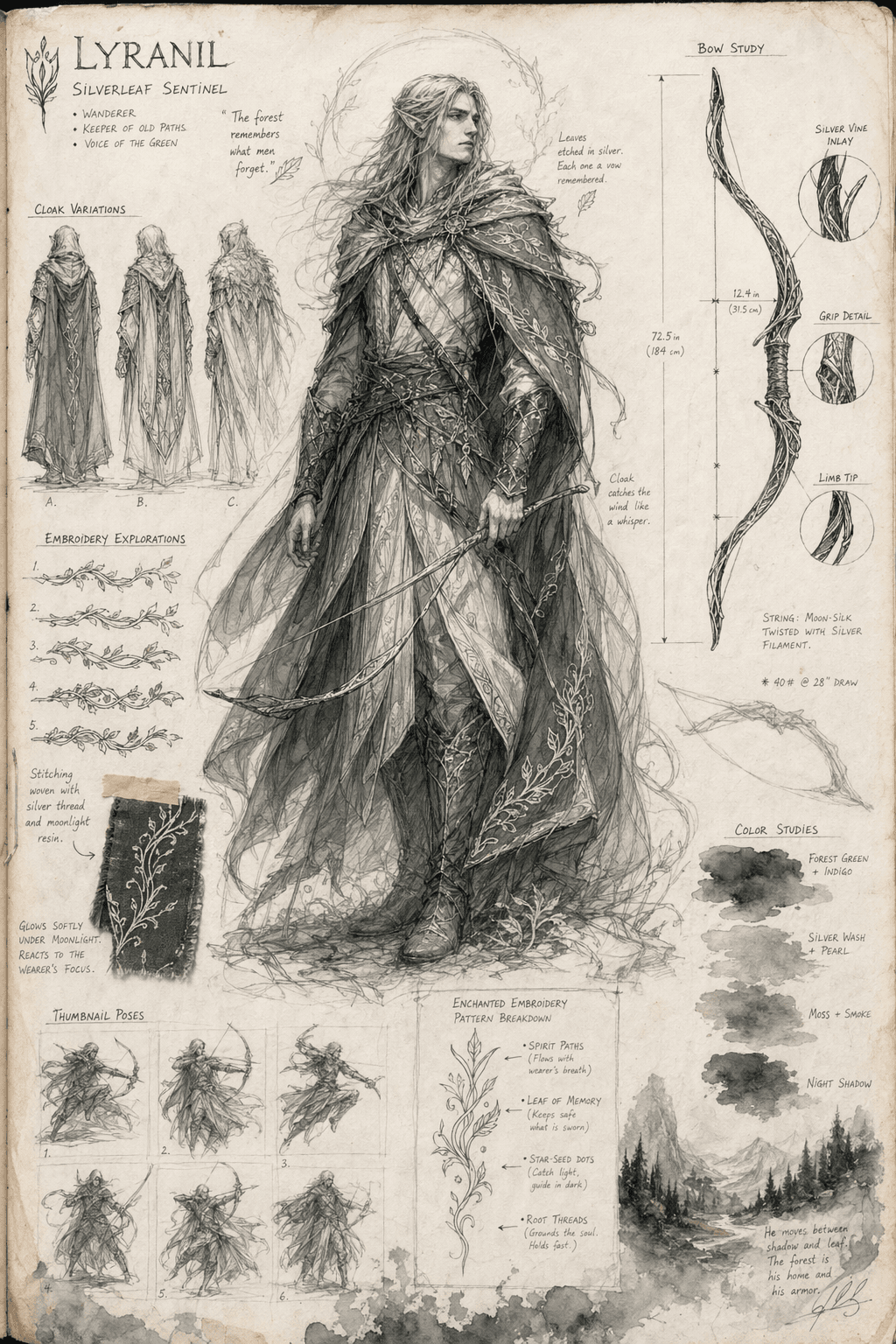
Move character sheets, rough concepts, line art, or moodboards into a more finished visual direction.
Workflow
Reference-aware editing works best when you are explicit about what to keep, what to change, and how far the transformation should go.
Start with a product photo, portrait, sketch, interior, ad creative, or any reference image you want to transform.
Say what should stay the same, what should change, and what final style or use case you are aiming for.
Choose GPT Image 2, Nano Banana 2, Flux 2, or GPT Image 1.5, then set aspect ratio, quality, and output format.
Review multiple directions, compare model behavior, and keep the result that best preserves what matters.
Bring your best output back into Image to Image for another round instead of starting over from scratch.
Why FlowCanvas
Competitors stop at one edit. FlowCanvas turns Image to Image into a multi-model refinement workspace that keeps the creative loop moving.
Use the same reference image across different models to compare precision, style, realism, and speed.
Preserve pose, product shape, room layout, or framing while changing background, color, material, and mood.
Start from a prompt, generate a candidate, then refine it with image editing in the same creative loop.
Create product assets, ads, social visuals, interiors, characters, and client-ready variations faster.
Explore cheaply, then use stronger model settings and higher resolution when the direction is ready.
Keep useful edit prompts and generated variants findable in your FlowCanvas workspace.
Examples
Each example pairs a reference-aware edit with the model and prompt direction that makes the transformation controllable.
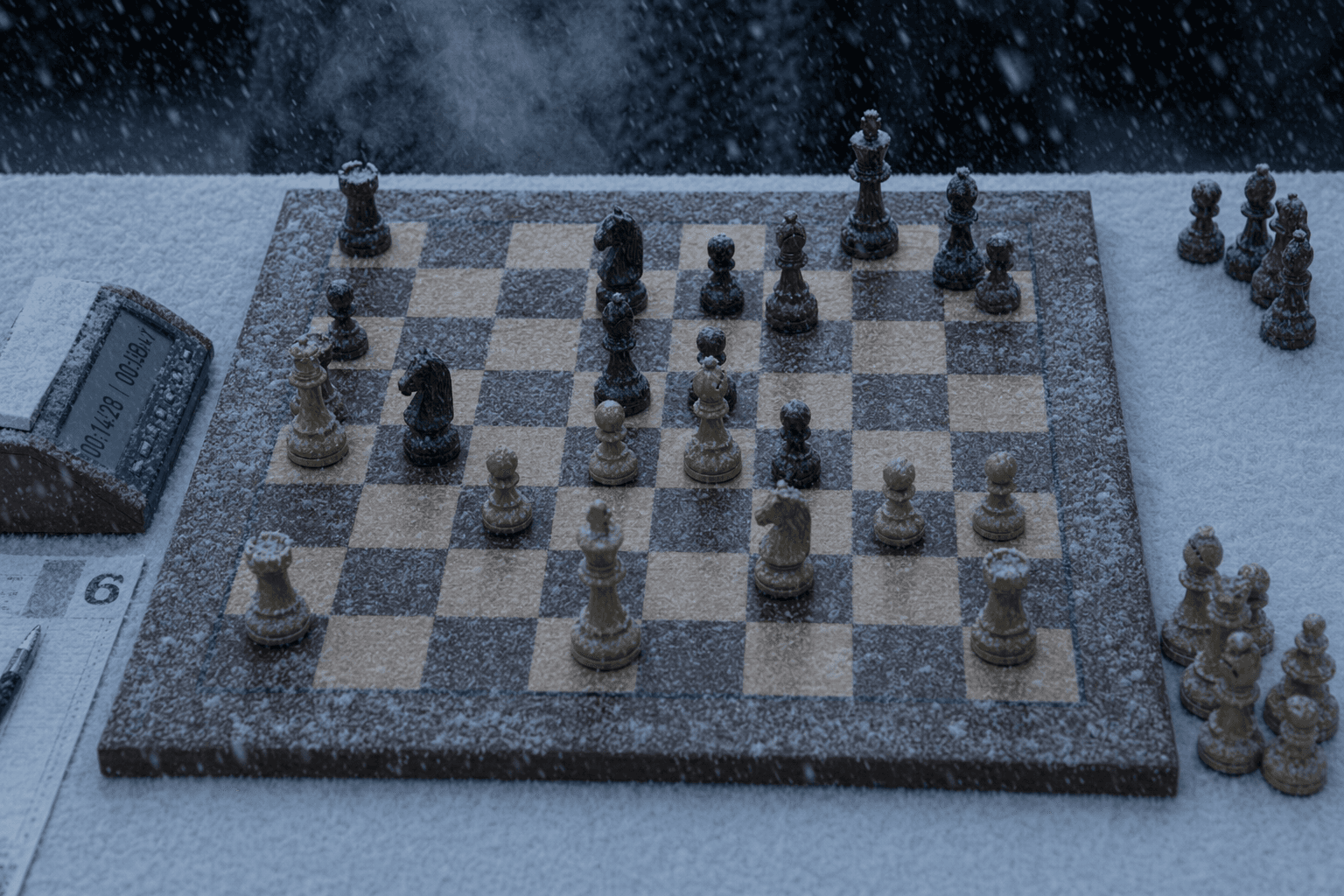
Keep the board layout, turn the scene into a quiet winter editorial image with cinematic lighting.
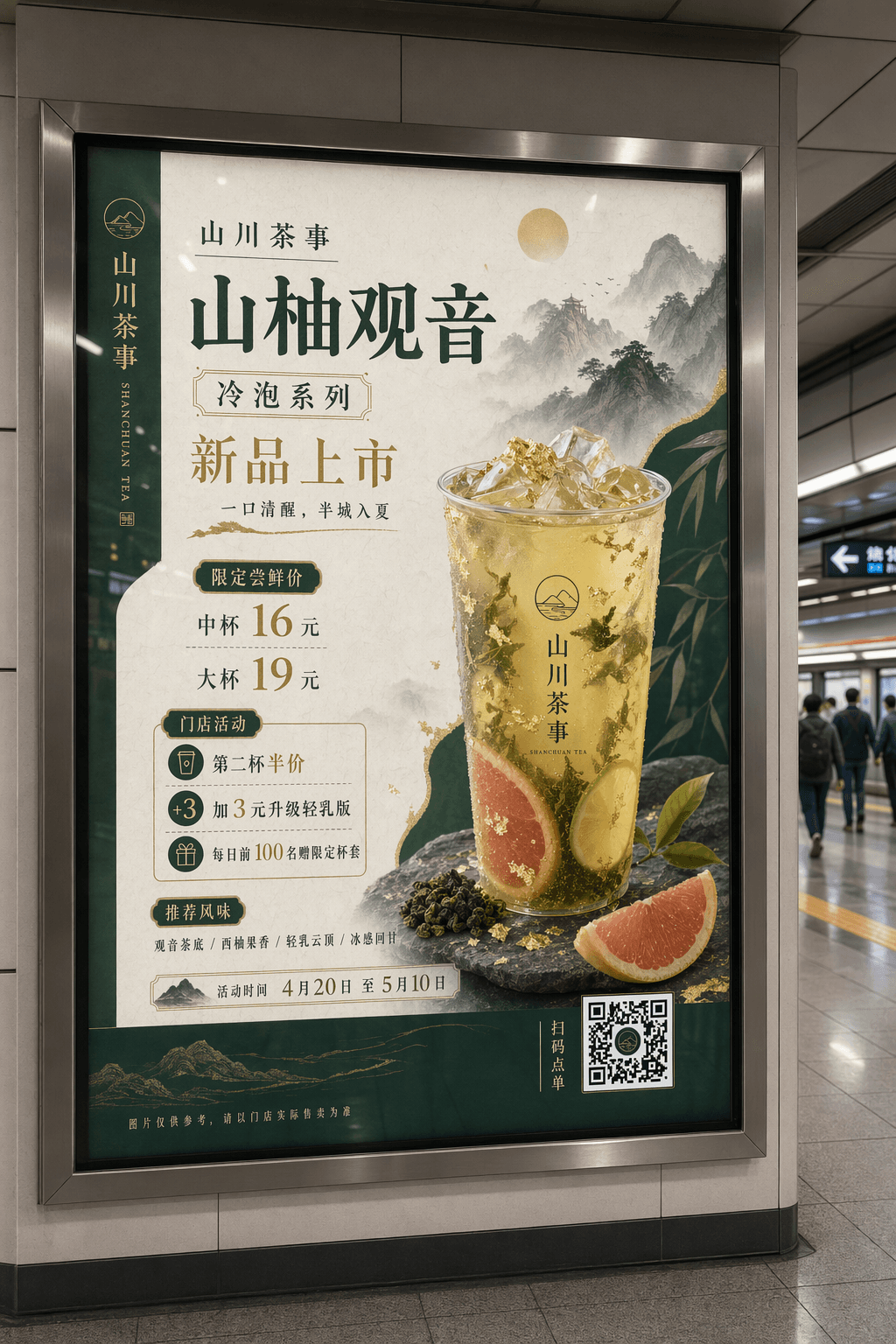
Transform this product concept into a polished campaign poster with strong typography and retail lighting.
Keep the room layout, make the design warmer, more premium, and ready for a client concept board.
Keep the character silhouette and costume details, refine it into a presentation-ready concept sheet.
Use Image to Image when you already have a visual direction. Use Text to Image when starting from scratch. The strongest workflow often combines both: generate a concept, then refine it with reference-aware editing.
Use phrases like keep the pose, preserve the product shape, keep the room layout, or retain the original framing.
Call out the background, material, lighting, season, color palette, era, clothing, or object changes you need.
Add direction such as studio lighting, luxury editorial, watercolor, cinematic, macro product shot, or wide angle.
The same reference image can become cleaner, more realistic, or more stylized depending on the model.
Answers about reference images, model choice, privacy, prompt writing, and commercial image editing workflows.
It is an AI workflow where an uploaded image guides the output. The model uses your reference for structure, subject, or composition while your prompt describes what should change.
Text to Image starts from a blank canvas. Image to Image starts from a reference, so it is better when you already have a subject, pose, layout, sketch, or photo direction.
Yes, supported models can use multiple uploaded images. This is useful for combining a product, a style reference, and a background direction.
It can preserve the subject when your prompt asks for that clearly. Mention what should stay unchanged, such as pose, face, product shape, or room layout.
Clear images with visible subjects, good lighting, and uncluttered compositions usually produce more controllable edits.
GPT Image 2 is strong for precise layout-aware edits, Nano Banana 2 for expressive style shifts, Flux 2 for realism, and GPT Image 1.5 for quick variations.
Upload a reference image, choose a model, and create polished variations in one workspace.